Friday, 16 March 2012

How to Add Welcome Tab in Your Facebook Page

Facebook is a great place to promote products, organisations, business, music bands and anything that you can think of.It is not only used by Global brands but local business have also stepped in for promoting their products.


By creating an attractive Facebook welcome page you can give it a professional look and feel.You may also include put in sign up forms,contact forms or your brand motto etc in your welcome page.This will help you get more conversions and likes.You can also lock content which will be visible only after a user likes the page (great for sharing coupon codes,free trials) etc.

You can include HTML, CSS, and JavaScript in your Facebook page that opens a wider range of options to create a fully customized page.

What You can Provide on Welcome Page:

-You can tell visitors about your company philosophy

-You can share Coupon Codes.

-Showcase of specific Products that your company owns.

-You can provide information about your organization and products.


How to Add Welcome Tab in Your Facebook Page:

 -Login to your Facebook Account

-Search for the Static HTML: iframe tabs in the search field and open it.

-Now click on the Add Static HTML to a page button.


-From the drop down menu select the page for which you want to create the custom Welcome Tab.

-Click on Add Static HTML.


-Now create a image of width 520p for your page or download any wallpaper of width 520p from the internet (width size should not be greater than 520p if you choose bigger width image facebook will change it to 520p itself).

-Upload the image to any free image hosting website (tinypic.com)

-Copy code from the Direct Link Layout section.

Paste this code in both the boxes in following format

<img scr =”Your Code Here” >


-You can also choose a different data (Image, HTML, CSS, Javascript) for the second box which will only visible to your Fans i.e hidden content

-Now click on Save Changes button.

Friday, 9 March 2012

How to Send Colorful Text in Facebook Chat

Facebook has restricted its user to chat in black text due concerns of server overloading and speed. But now you are no longer bound to chat in black text. There are some special codes for you that empower you to send colourful text in chat. This trick is solely based on the fact that when profile ID’s are inserted in between square brackets, it automatically transforms into the profile picture. These ID’s are specially created for this purpose.


  You can also send messages in colourful text but these codes will not work in Status update. This will also not work if the other person is using chat from his mobile.

Here is the list of codes with their alphabets.

[[107015582669715]] = A

[[116067591741123]] = B

[[115602405121532]] = C

[[112542438763744]] = D

[[115430438474268]] = E

[[109225112442557]] = F

[[111532845537326]] = G

[[111356865552629]] = H

[[109294689102123]] = I

[[126362660720793]] = J

[[116651741681944]] = K

[[115807951764667]] = L

[[106596672714242]] = M

[[108634132504932]] = N

[[116564658357124]] = O

[[111669128857397]] = P

[[107061805996548]] = Q

[[106699962703083]] = R

[[115927268419031]] = S

[[112669162092780]] = T

[[108983579135532]] = U

[[107023745999320]] = V

[[106678406038354]] = W

[[116740548336581]] = X

[[112416755444217]] = Y

[[165724910215]] = Z


 How to Use it:


To create a word of colourful text copy the codes of alphabets and make sure to insert single space between the each alphabetic code. Here is the code for COMPUTER TRICKS.

COMPUTER: [[115602405121532]] [[116564658357124]] [[106596672714242]] [[111669128857397]] [[108983579135532]] [[112669162092780]] [[115430438474268]] [[106699962703083]]

TRICKS: [[112669162092780]] [[106699962703083]] [[109294689102123]] [[115602405121532]] [[116651741681944]] [[115927268419031]]


How to Download Facebook Photo Albums

FacePAD: Facebook Photo Album Downloader allows you to download your friends’ facebook albums, Events albums, and Group Albums, en masse, with the click of a button. (FOR FIREFOX)


Thursday, 8 March 2012

How to Place Facebook Chat On Firefox Sidebar


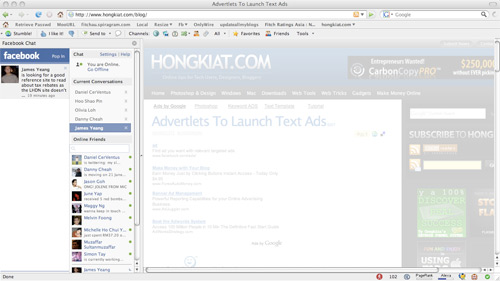
Facebook Chat is cool, at least it allows you to send instant messages to online Facebook contacts. However I’m not really a fan of the chat bar being at the bottom of the page, what if I’ve left Facebook but still wants to remain chatting with my Facebook contacts? If you are using Firefox, you can place the Facebook Chat at the sidebar.


Step 1


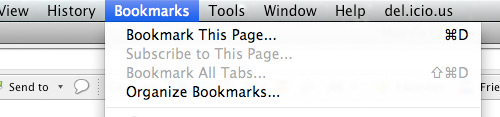
Look for Bookmarks on the top navigation. Select Organize Bookmarks…

Step 2

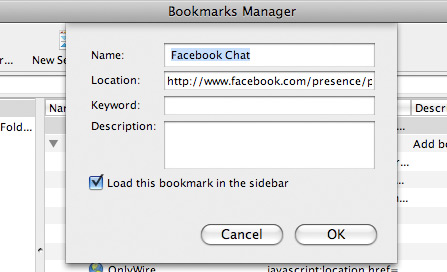
Click New Bookmark... tab and enter the following:
Name: Facebook Chat
Location: http://www.facebook.com/presence/popout.php
Check Load this bookmark in sidebar.


Step 3

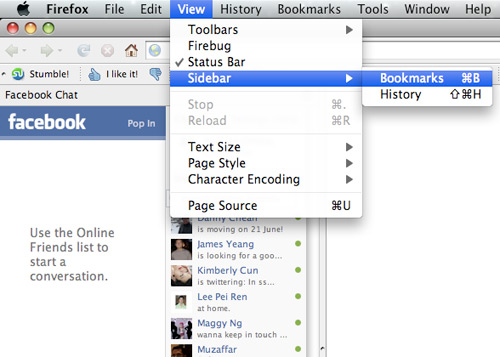
Launch the Firefox sidebar, click Facebook Chat and start chatting with your Facebook contacts within Firefox.


Wednesday, 7 March 2012

How to Delete Old Facebook Content From your Profile


Facebook Timeline enables people to search and access older content very easily. As in the old facebook profile it was  hectic task  to find out what has been posted about few months or a year ago but in Facebook timeline all your activities are arranged in chronological order and it allows your friends you check out all your Facebook content. So if you think you have posted something abusive then it is time to delete that content.

How to Delete Old Facebook Content From your Profile

Application For Android To Delete Old Facebook Content

Exfoliate is an application for Android phones which can sweep content from Facebook which you have posted about one/two year ago. You can choose the content like status updates, photos, likes and many more that you want to remove from your timeline. You also remove all the posts that you had posted on your friends wall in past. If you are active user on facebook then it may take long time to clean all your activities.
Click Here to Downlod Android Application

JavaScript To Delete Old Facebook Content

Clean My Wall is JavaScript that run runs only in the Mozilla Firefox browser. To delete all your old Facebook content you have to follow following steps:
  • First of all you have to Remove Facebook Timeline your account. Click to check how to remove facebook timeline.
  • Now after removing Facebook timeline Bookmark Clean My WallJavaScript and add it to your Favourites.
  • Click on the favourite created in second step.
  • Now window will pop-up asking you from where you want to remove your posts. Select the number from the drop down list and click on GO button.
110 How to Delete Old Facebook Content From your Profile
That’s it! Be careful while deleting your old facebook content because once deleted it cannot be recovered back.

How to Add and Customize Facebook Timeline Apps


After the launch of Facebook Timeline, some special applications were introduced .These applications are specifically designed to promote “Frictionless Sharing” i.e it will automatically post updates once you grant them permissions.  These applications are categorized under several groups like Entertainment
, Food, Music, New etc.If you add a music app like iHeartRadio then it will automatically post an update about the song you are listening, so privacy is a major concern in these apps.
After adding application in Timeline, you will continuously receive updates  from that app. Privacy Settings for all these apps should be carefully customized.

How to Add Applications in Facebook Timeline

1 How to Add and Customize Facebook Timeline Apps
  • Select desired application and click on Go To App button.
2 How to Add and Customize Facebook Timeline Apps
Now that particular Application will be added in your Timeline.

 How to Customize Facebook Timeline Applications

  • During Installation of App,  in Go To App window click on the Public button.
  • Select the appropriate group to which you want to show the updates.
3 How to Add and Customize Facebook Timeline Apps
You can also choose Custom to Hide your activities from specific people.

Tuesday, 6 March 2012

How to create static page in blogger


Hurry Google launched new Blogger feature to create static Blogger pages.

Here is the process

1) first sign in to draft.blogger.com

2) go to New Post
3) Select The Edit Pages (See the figure below)
static page blogger, create static blogger pages, blogger tips, blogger tricks


Now write your content and publish it just as you publish the post

select the option where you want to display page list in your blog

now click on save and publish
after publishing click on view to view the created page
copy the links of the page from browser address bar then paste that link where you want